Ive recently neigh using a lot of Linux containers, sometimes called LXC, Ive fond since I installed p[ropxmox that I have been using them more and more, but a lot of stuff come only as a Diocker container and I’ll be honest, despite my 40+ years in IT a IT security I know very little about these bits of magic, so I spent a weekend doing what all good IT folk do when they don’t know something – I asked someone else – Ok not quite, but I did go an look at v ideas that someone else had made for our benefit.
I found a channel by a chap named NetworkChuck, he has his own academy at networkchuck.com but has a ton of great videos and I watched all of his docker videos in one afternoon. Sadly, I’m in my sixties and stuff doesn’t stick like it used to so what is below are my notes on his training. All material here belongs to Chuck, these are just my study notes put somewhere I can get to them wherever I am in the world.
What are Containers
Containers are to operating systems what virtual machine are to hardware. Instead of virtualising the hardware they virtualise the operating system, They are effectively their own micro computers with their own OS, CPU. memory and network, this means they can be very sure, they are isolated, quarantined and super fast to build and deploy. Having watched Chuck fawn over Docker, I can see why and I am already planning how I might use them more especially for my labs
Docker vs LXC
I am sure that the Docker Captains and purists will be raging at me when I say that Docker is just a posh, advanced LXC. It’s not entirely true because Docker can run on windows and an LXC by its very nature requires Linux, however, even the Docker website says “Although Docker started with LXC, it added significant value by layering tools and services that enhance the use reference and management…” so it at least Docker started life as an LXC.
I asked various LLM what the differences were and they gave me very similar answers, none were particularly descriptive or helpful for a newcomer, so I asked it to explain the different to a none technical person and it made a bit more sense.
The Physical Server
When you buy an office building, it’s usually empty, you have one big space, no walls no desks, nothing. This is your server. It’s one machine, it has nothing on it and YOU have to configure it.
Virtual Machines
You could think of these in terms of different floors in your office building, The building power, heat, light is all provided and you share the costs and use your portion as allocated. You may connect some of your own things directly.
LXC
These are your offices, self contained spaces, fully furnished, doors, windows, desks, cabinets, all their all need to be operate and managed by you
Docker Container
This is a desk. It’s a desk, it is setup for a particular purpose, with ONLY the things needed for that purpose, nothing more, nothing less. Everything else around it is either removed or managed elsewhere, the building, the floor, the office it is all managed by someone or something else and you drop your desk into that space. You can take this desk anywhere, and everywhere you go it’ll always have the right things for that job it is designed to perform.
I don’t know if this is 100% accurate, but it helped me visualise the differences.
Getting started
You need to have a Linux server to do this on. You can pretty much use any Linux OS, but if you are just starting out I recommend Debian or one of its variants like Ubuntu or Mint. Once you have a Linux computer to use you need to install Docker, you can do this but there are a few steps to connect your computer to the Docker repositories and secure the connections, so go and follow this tutorial
Debian – https://docs.docker.com/engine/install/debian
Ubuntu – https://docs.docker.com/engine/install/ubuntu/
Once you have Dicker installed, it is easy to get started you just need an image for your container. Chuck uses CentOS, but Red Hat binned it so I downloaded Debian, use this one simple command to pull the Debian container image
docker pull DebianThis simply tells Docker to pull the image, because we didn’t specifically anything else, it pulls the latest image … this is what it looks like in my terminal:

To create and start a container we simply tell it to run:
docker run -d -t --name cantcontainmyself DebianWhat does this all mean?
- -d detach <– this runs the container in the background and just prints the ID to show its running
- -t allocate a pseudo tty <– this provide a terminal you can use (I think) Chuck never explains what this does (Bad Chuck!!!)
- –name <name of container> <– give the container a user friendly name
- <image> <– this is the container image you want to load, in this case it is just an OS but it could be a complete application
This is what it looks like in my terminal:

To check what’s running we can use this command
docker psYou can see that the container has started… less than a second.

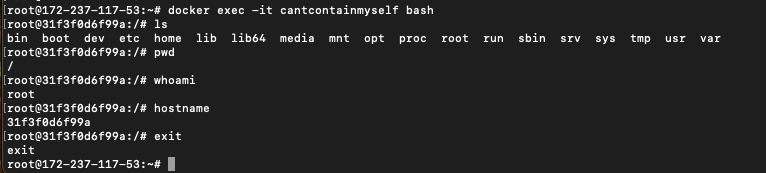
We can interact with the container by opening a shell using docker exec like this
docker exec -it cantcontainmyself bashLets break down this command
- exec tells docker to execute a command in the container
- -i <– tells docker to keep STDIN open allowing interactive communication
- -t allocate a (pseudo) terminal
- cantcontainmyself <– this is the contain name you want to intercatve with, change this to be whatever name you need to
- bash <– this tells docker you want to use the bash shell
Here it is in my lab. Note the exit command which brings us out back to the host shell
At the start I mentioned that containers could be an OS or an entire application and as an example Chuck has a pre-built website in Docker Hub. Docker Hub is the main repository that holds Docker images and when creating containers you can download these images.
In this example not only do we download Chuck’s prebuilt image, but we specifically a tag. A tag could be thought of as representing a version of an image. Here we pull the image thenetworkchuck/nccoffee:frenchpress (you’ll soon learn he’s obsessed with coffee, well he is American after all) the. we build the container
docker pull thenetworkchuck/nccoffee:frenchpress
docker run -d -t -p 80:80 --name nccoffee thenetworkchuck/nccoffee:frenchpress
Now the container is running. and it has a website built in that is immediately accessible to everyone … it is broken, the image didn’t load, Chuck hosted it on an external network and I guess he’s removed it… but the webpage did load, which means that at this point you’ve deployed a website that (with some TLC) could be deployed anywhere on any linux host that has docker installed.
Command Summary
docker pull Debian # pull an image from the docker public hub
docker run -d -t --name <name> <image> # run a container
docker stop <container name> # stops the container
docker start <container name> # starts a stopped container
docker stats # look at key resource usage
Hopefully these notes help. You can find the video I followed at https://www.youtube.com/watch?v=eGz9DS-aIeY or just watch it below